Topaz Photo AI Complete Guide: AI Noise Reduction and Sharpening in 2026
As an Amazon Associate, ExifGrabber earns from qualifying purchases.
What Is Topaz Photo AI?
Topaz Photo AI is a standalone desktop application from Topaz Labs that uses machine learning models to enhance photos through three core functions: noise reduction (denoise), sharpening, and upscaling (resolution increase). It works on RAW, TIFF, JPEG, and PNG files, either as a standalone app or as a plugin for Adobe Lightroom, Photoshop, and Capture One.
The software analyzes each image and automatically suggests enhancement settings based on what it detects: noisy shadows, slight motion blur, a low-resolution source, or all three. You can accept the automatic suggestions, fine-tune the sliders manually, or switch between different AI models optimized for different scenarios.
Since its launch, Topaz Photo AI has become one of the most widely used enhancement tools among photographers. The team at ExifGrabber put together this guide to help you decide whether it belongs in your editing workflow and how to get the best results from it.
The 2026 Subscription Model: What Changed
The biggest change to Topaz Photo AI in 2026 has nothing to do with image quality. In September 2025, Topaz Labs discontinued perpetual licenses entirely and moved to a subscription-only model. This was a controversial decision that frustrated many loyal users who had previously purchased lifetime licenses.
Here is the current pricing breakdown:
| Plan | Price | What You Get |
|---|---|---|
| Photo AI Personal (monthly) | $17-21/month | Single app, personal use |
| Photo AI Personal (annual) | ~$199/year | Single app, personal use |
| Studio Personal (annual) | $399/year (~$33/month) | Photo AI + Video AI + Gigapixel |
| Studio Pro (annual) | $799/year (~$67/month) | Full suite, commercial use, higher export limits |
The Personal tier limits commercial use to organizations under $1 million in revenue. If you need full commercial rights, you must subscribe to a Pro tier.
For photographers who previously bought Topaz Photo AI for a one-time fee of $199, the shift to an annual subscription at the same price point means ongoing costs that add up over time. Whether the continuous AI model updates justify the recurring fee depends on how heavily you rely on the tool.
Core Features Explained
Noise Reduction (Denoise)
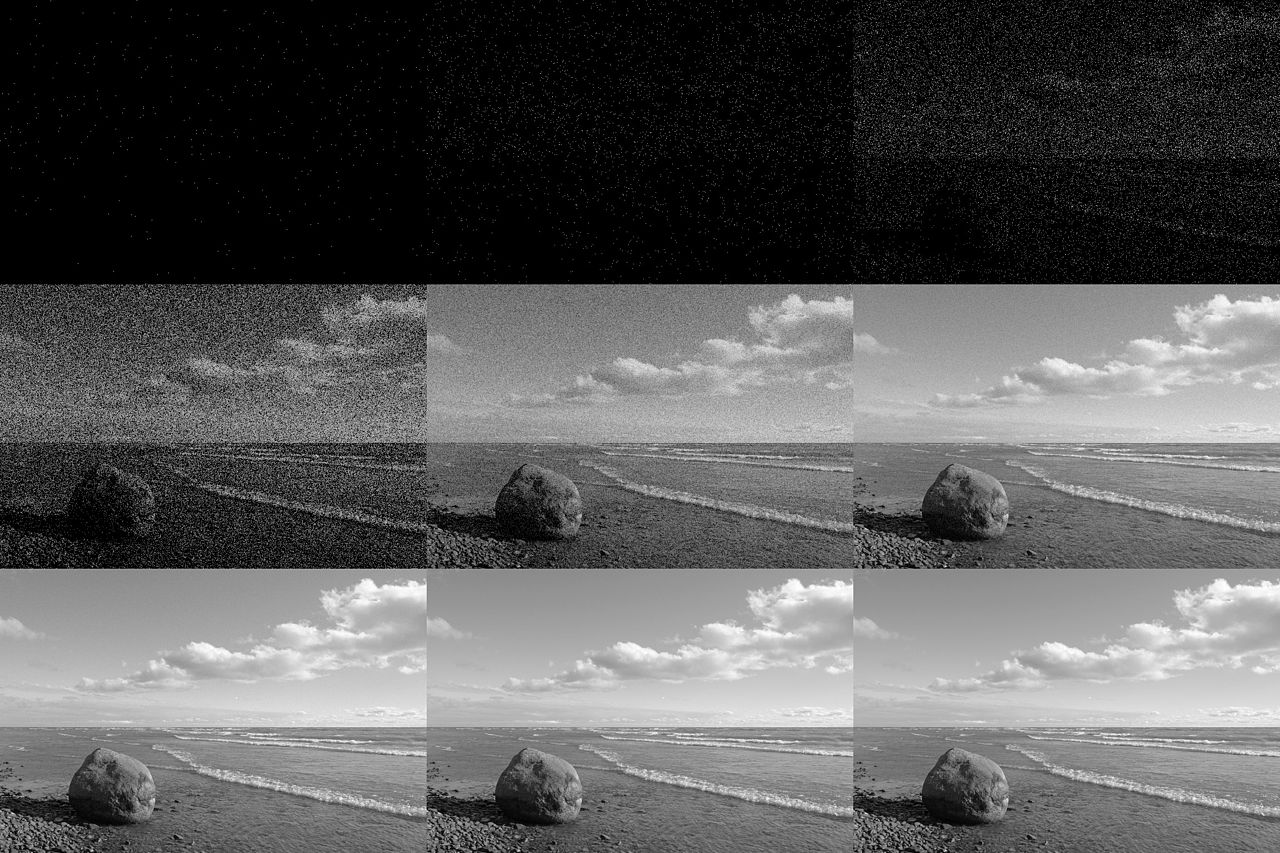
Noise reduction is arguably the primary reason most photographers use Topaz Photo AI. The software includes multiple AI denoise models, each trained on different types of image noise:
The Standard model works well for moderate noise levels (ISO 800-6400 on most modern cameras). It does a good job preserving fine detail like hair, feathers, and fabric texture while smoothing out luminance and color noise.
The Strong model is designed for heavily noisy images (ISO 12800+). It applies more aggressive noise removal but can sometimes smooth away fine texture in the process. Use it when the noise is so bad that some detail loss is an acceptable trade-off.
The Low Light model is optimized specifically for underexposed images where both noise and color accuracy are compromised. It attempts to recover shadow detail while cleaning up the noise that lives there.
In practice, Topaz's noise reduction is genuinely impressive. It routinely saves images that would be unusable straight out of camera, recovering detail from high-ISO wildlife shots, dimly lit event photos, and underexposed night scenes. The AI models understand the difference between noise and texture in a way that simple noise reduction sliders in Lightroom or Camera Raw cannot match.
However, the denoise models can be heavy-handed. Even at conservative settings, the processing can push too far, creating an unnaturally smooth look. Fine details like skin pores, distant foliage, or fabric weave can take on an AI-processed appearance that some photographers describe as "plasticky" or "illustrated." The key is to use the opacity slider to blend the denoised result with the original, finding the sweet spot between noise removal and natural texture.
Sharpening
Topaz Photo AI's sharpening module goes beyond traditional unsharp mask or smart sharpen tools. It uses AI models trained to recognize and reverse specific types of blur: motion blur, lens softness, and focus miss.
The Motion Blur model can recover detail from slight camera shake, a common issue when shooting handheld with telephoto lenses or in low light. It analyzes the blur direction and attempts to reverse it.
The Lens Blur model targets the inherent softness that all lenses produce, especially at wide apertures and extreme focal lengths. It can make a moderately soft lens look noticeably sharper.
The Focus model attempts to sharpen images where the focus point was slightly off. This is the most aggressive model and can produce visible artifacts if overused.
The sharpening is powerful but demands restraint. The default "auto" setting often applies more sharpening than most photographers would choose. Fine details can start to look like illustrations rather than photographs, with an overly crisp, almost etched quality that draws attention to the processing. Dialing the strength down to 50-70% of the auto suggestion usually produces more natural results.
Upscaling (Enhance Resolution)
The upscaling module uses AI to increase image resolution, typically by 2x or 4x, while generating plausible detail that did not exist in the original file. This is useful for cropped wildlife photos, older low-resolution images, and any situation where you need more pixels than you started with.
Topaz's upscaling is among the best available. It generates convincing detail in areas like text, fabric patterns, and foliage. The results are not true resolution (the generated detail is an educated guess, not real data), but for print and web display, the quality is impressive.
How to Use Topaz Photo AI Effectively
Step 1: Start with a Good RAW File
Topaz Photo AI works best on RAW files. RAW files contain more data than JPEGs, giving the AI models more information to work with when separating noise from detail. If you are processing JPEGs, the results will still be good, but RAW files consistently produce cleaner, more natural output.
Step 2: Process Before Creative Editing
Run Topaz Photo AI early in your workflow, ideally before you do color grading, local adjustments, or creative edits in Lightroom or Photoshop. The AI models work best on images that have not been heavily processed. If you apply noise reduction after aggressive shadow recovery or saturation pushes, the results will be less clean.
If you use Lightroom, the plugin workflow is straightforward. Right-click your photo, choose "Edit In > Topaz Photo AI," and the processed file returns to your Lightroom catalog as a new TIFF or DNG.
Step 3: Use the Preview Wisely
Always check the 100% preview before applying. The zoomed-out view can look perfect while the pixel-level view reveals over-smoothing or sharpening artifacts. Pay special attention to:
- Hair and fur (look for the "illustrated" effect)
- Fine textures like fabric or bark
- Out-of-focus background areas (noise reduction should be applied less aggressively to bokeh)
- Edges between subjects and backgrounds (look for halos or ringing)
Step 4: Dial It Back
A general rule: if the auto setting suggests strength 80, try 50-60 first. It is better to leave some noise in the image than to over-process it. You can always run the file through a second time with additional denoising if needed.
Step 5: Blend with the Original
Use the opacity or recovery slider to blend the processed result with the original file. A 70-80% blend often produces the most natural results, keeping the AI cleanup where you need it while retaining authentic texture in areas that were already clean.
Topaz Photo AI vs. the Competition
Topaz Photo AI is not the only AI-powered noise reduction tool in 2026. Here is how it compares to the main alternatives.
DxO PureRAW
DxO PureRAW is Topaz's most direct competitor for noise reduction, and many reviewers now consider it the stronger tool for that specific task. PureRAW combines AI denoising with DxO's lens optics correction database, producing exceptionally clean files with natural texture. It also corrects lens distortion, vignetting, and chromatic aberration in the same pass.
The critical advantage: PureRAW still offers a perpetual license at $139.99. No subscription required. For photographers who primarily need denoise and lens correction, this is a significantly better value proposition than Topaz's $199/year subscription.
The downside: PureRAW works only with RAW files and does not include sharpening or upscaling tools. If you need those features, you will still need Topaz or another tool.
ON1 NoNoise AI
ON1 NoNoise AI is a focused noise reduction tool that handles both RAW and processed files (JPEG, TIFF, PNG, PSD). It offers strong noise reduction with a natural look and includes some sharpening capability.
At $69.99 for a perpetual license, it is the most affordable dedicated AI denoiser. The results are very close to Topaz for noise reduction, though Topaz maintains an edge in upscaling and the sharpening models are more advanced.
Adobe Lightroom AI Denoise
Adobe added AI-powered noise reduction to Lightroom Classic and Camera Raw, and for many photographers it eliminates the need for a separate tool entirely. The quality is strong, though it can be slow to process and does not offer the same level of control as Topaz or DxO.
If you already subscribe to Adobe's Photography Plan, this is free and integrated directly into your existing workflow. For casual use, it may be all you need.
Comparison Table
| Tool | Best For | RAW Support | JPEG/TIFF | Sharpening | Upscaling | Pricing |
|---|---|---|---|---|---|---|
| Topaz Photo AI | All-in-one enhancement | Yes | Yes | Yes | Yes | $199/year |
| DxO PureRAW | Cleanest RAW denoise | Yes | No | No | No | $139.99 perpetual |
| ON1 NoNoise AI | Budget denoise | Yes | Yes | Basic | No | $69.99 perpetual |
| Lightroom AI Denoise | Integrated workflow | Yes | No | No | No | Included with Adobe plan |
When Topaz Photo AI Shines
Topaz Photo AI is at its best in specific scenarios where no other tool quite matches it.
High-ISO wildlife and sports photos. If you regularly shoot at ISO 6400-25600, the noise reduction alone justifies the subscription. A sharp eagle in flight shot at ISO 12800 that would be unpublishable straight from camera can become a portfolio-worthy image after processing.
Cropped images that need upscaling. Wildlife photographers frequently crop heavily. Running a cropped image through Topaz's upscaler can recover enough detail to make a tight crop look like it was shot at a longer focal length.
Rescuing older or low-resolution images. If you have a library of images from older cameras (10-16 megapixel sensors from the 2010s), the upscaler can bring them closer to modern resolution standards for printing.
Motion blur recovery. The sharpening models can genuinely recover detail from slight camera shake. This does not work miracles on severely blurred images, but for borderline cases it can save a shot.
When to Skip It
Topaz Photo AI is not always the right tool. Here are situations where you might be better off with an alternative.
Clean, well-exposed images. If your image is sharp and shot at a low ISO, running it through Topaz will not improve it and may introduce subtle processing artifacts. Not every photo needs AI enhancement.
Batch processing hundreds of RAW files. Topaz Photo AI can be slow, especially on older hardware without a powerful GPU. For large batches, Lightroom's built-in AI denoise or DxO PureRAW's batch processing is faster and more practical.
Budget-conscious photographers. If noise reduction is your primary need, DxO PureRAW at $139.99 one-time or ON1 NoNoise AI at $69.99 deliver excellent results without an annual subscription.
Professional commercial work. The Personal tier restricts commercial use. If you are running a photography business earning over $1M, you need the Pro tier at $799/year, which is a significant recurring expense.
System Requirements and Performance
Topaz Photo AI is GPU-intensive. Processing times vary dramatically based on your hardware:
- With a modern GPU (NVIDIA RTX 3060 or better, Apple M1 Pro or better): 5-15 seconds per image for denoise, 10-30 seconds for upscaling
- Without a dedicated GPU (integrated graphics, older laptops): 30-120+ seconds per image
If you are considering Topaz Photo AI, make sure your computer has a decent GPU. The CPU-only fallback works but is painfully slow, especially for batch processing.
The software requires about 8GB of RAM minimum, though 16GB or more is recommended. Disk space requirements vary based on how many AI models you download (each model is 500MB-2GB).
The Verdict: Is Topaz Photo AI Worth It in 2026?
Topaz Photo AI remains the most capable all-in-one photo enhancement tool available. Its combination of noise reduction, sharpening, and upscaling is unmatched by any single competitor. If you regularly shoot in challenging conditions and need to rescue noisy, soft, or low-resolution images, it delivers real, tangible results.
The subscription model is the sticking point. At $199/year for the standalone app, it is a recurring expense that many hobbyist photographers will find hard to justify, especially when DxO PureRAW and ON1 NoNoise AI offer strong denoise capabilities with perpetual licenses.
For professional wildlife, sports, and event photographers who process high-ISO images daily, the subscription pays for itself in saved shots. For casual shooters who only occasionally need AI enhancement, start with Adobe Lightroom's built-in denoise or try ON1 NoNoise AI's one-time purchase.
You can check the EXIF data of any image to see the ISO and camera settings that produced it. Upload a photo to ExifGrabber and the exposure tab will show you exactly how high the ISO was pushed, helping you decide if AI noise reduction would improve the file.